GalleryPlanner: Complete User Guide
The complete GalleryPlanner user guide, from building your frame library and arranging layouts to Wall Objects, wall textures, photo levels, Smart Fill, drag-to-resize, and Pro exports.
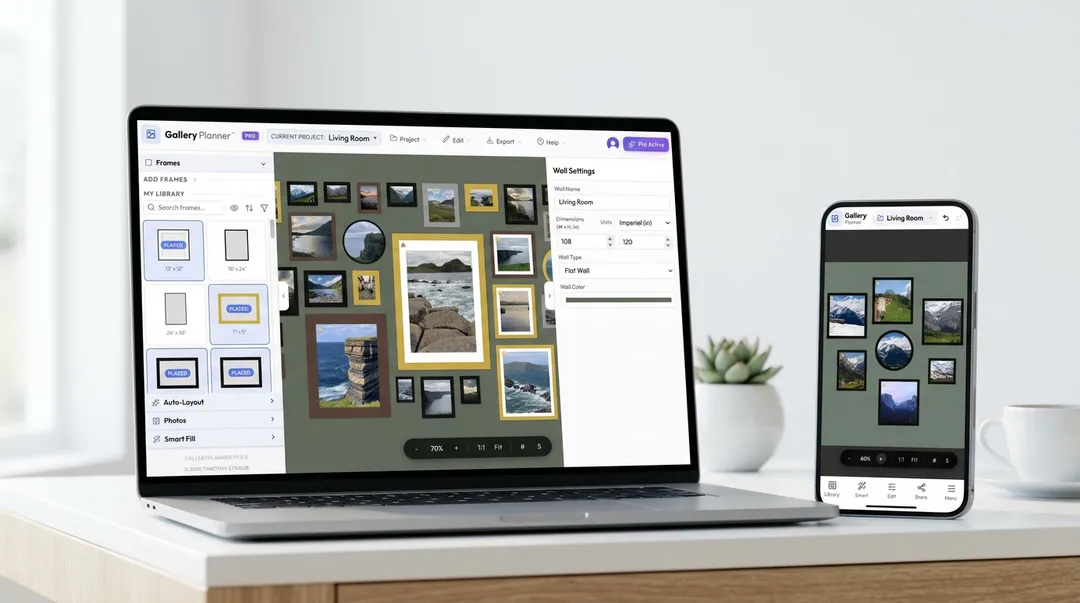
GalleryPlanner is a free, web-based gallery wall planner that lets you measure, arrange, and export real layouts with your own frames and photos. It keeps planning local, works on desktop and mobile, and covers everything from setup to install-day exports.
What is GalleryPlanner?
GalleryPlanner is a free, web-based application that lets you visualize gallery wall layouts using your real frame inventory and personal photos. Unlike other design tools, GalleryPlanner prioritizes:
- Precision: Exact measurements down to the inch
- Privacy: Your photos never leave your device (local-first storage)
- Flexibility: Works on desktop and mobile with seamless project handoff
- Intelligence: Auto-Layout generates balanced arrangements automatically
Getting Started: Your First Project
Step 1: Open the App
Navigate to gallery-planner.com and click “Launch App” or “Start Designing Free”.
Step 2: Set Your Wall Dimensions
Starting a new project on desktop or mobile opens Guided Setup (unless you’ve turned it off in Settings) — a five-step walkthrough that builds your first wall with you (wall, frames, Auto-Layout, then optional photos and Smart Fill). You can follow it, or skip it and work manually; the steps below describe the manual flow.
When you first open the app, you’ll see the Wall Properties panel:
- Enter your wall width and height in inches or centimeters
- Choose between:
- Flat: Standard rectangular wall
- Staircase (Ascending / Descending): Angled wall following stairs, with adjustable Rise (%)
- Dimensions update live as you type
Pro tip: Measure your wall carefully! Include the full area where you want to place frames, from floor to ceiling or edge to edge.
Building Your Frame Library
The Frame Library is where you manage your frame inventory—the collection of frames you own or plan to buy.
Adding Standard Frames
GalleryPlanner includes presets for common frame sizes:
- Click the Library tab (left sidebar on desktop, bottom toolbar on mobile)
- Browse standard sizes: 4×6, 5×7, 8×10, 11×14, 16×20, 18×24, 24×36
- Click the ”+” button next to a size to add it to your inventory
- Adjust the count to add multiples (e.g., “I have three 8×10 frames”)
Adding Retailer Frames from the Brands Tab
If your frames come from IKEA, Pottery Barn, West Elm, or CB2, use the presets instead of measuring:
- Click Add Frame in the Frames panel (on mobile, tap Brands in the Library sheet)
- Open the Brands tab and pick a brand
- Click a frame tile to add it to your library, or drag it straight onto the wall
Each preset carries the retailer’s real glass size, moulding width, and mat opening, and is labeled with the brand and family name (for example, “IKEA RÖDALM”) so it shows up by name in your frame list and Shopping List. Frames that ship with two mats appear twice, once per mat. Presets add with the included mat; turn it off in Properties for a full-bleed print. IKEA is free, and the other three brands are part of Pro. Sizes come from each retailer’s published US specs and are for planning convenience only; GalleryPlanner isn’t affiliated with these brands.
Creating Custom Frames
Got an unusual frame size or unique piece?
- Click Add Frame in the Frames panel
- Open the Custom tab
- Enter exact width and height dimensions
- Choose frame color (black, white, natural wood, gold, or custom color)
- Decide if the frame has matting, then click ”+ Add to Library”
Frame Customization Options
| Option | Description |
|---|---|
| Frame Color | Black, white, natural wood, metallic gold, or any custom color |
| Matting | Toggle on/off—adds visual breathing room around artwork |
| Mat Color | White, black, or a custom mat color for matted frames |
| Orientation | Automatically adjusts when you change width/height |
| Quantity | Track how many of each frame size you have |
Set your defaults once: If you always use the same frame style, open Settings (gear icon in the desktop header, or the mobile menu) and find the Frame Defaults section. You can preset the border width, frame color, matting, mat border, and mat color that every new frame starts with.
Grid size: In Settings → General, set your own snap grid spacing instead of the fixed default. The background grid overlay thins out automatically as you zoom out to stay readable, but Frame snapping and Auto-Layout always use your exact grid size.
Library Inventory View
Identical frames stack automatically in your frame list (the Frames panel on desktop, the Library sheet on mobile). Switch to List view (from the View Options menu in the list header) to see the inventory breakdown: matching frames get a separate row for each state—Placed on the wall, Staged below it, or still in inventory—with a count badge when a row holds more than one, so you can track what’s on the wall versus waiting. List rows also spell out each frame’s color and border width, plus the mat opening and mat color for matted frames. Prefer thumbnails? Grid view tiles come in Small, Medium, Large, and Extra Large from the same menu, and every preview sits on your wall color so you can see how it will read.
On the canvas itself, staged frames are easy to spot: anything not fully on the wall shows an amber outline, plus a small STAGED badge on frames big enough to fit it. Wall Objects get the same treatment.
Shortcut: In List view, click any row to instantly select all matching frames already on the canvas. Useful for batch-moving or deleting a frame type.
Wall Objects (Pro)
Use Wall Objects when the thing on the wall is not a picture frame at all - TVs, windows, doors, sofas, shelves, vents, headboards, and other real-world fixtures.
Where to find them: On desktop, click Add Frame in the Frames panel and open the Objects tab — click a preset to add it, or drag it straight onto the wall. On mobile, tap Object in the Library sheet and pick a preset from the dialog.
- Dedicated presets - Window, Door, Fireplace, TV, Light switch, Thermostat, Sconce, Shelf, Vent, Headboard, and Sofa, plus Custom for unusual shapes
- Real obstacle behavior - Wall Objects stay movable, but Auto-Layout and Smart Fill treat them as obstacles
- Recognizable on the canvas - Wall Objects appear as simple schematic drawings, so a window looks like a window instead of a gray box
- Clearer exports - snapshots and hanging guides keep the object visible so install-day planning stays readable
Bulk Import (Paste or CSV)
Adding a long inventory one frame at a time gets old. The Bulk tab — click Add Frame in the Frames panel on desktop, or tap Bulk in the mobile Library sheet — handles bulk entry two ways:
- Paste text — paste a list like
8×10, 11×14, 16×20(or one frame per line) and GalleryPlanner parses the dimensions for you. Extra context (Extra Large - 16 x 20 matted to 11 x 14) is tolerated. - CSV upload — click Download CSV template, fill in dimensions, color, mat color, label, and quantity in your spreadsheet of choice, then upload it. The columns match the Pro Shopping List export, so you can round-trip an entire frame inventory between projects.
Designing Your Layout
Start from a Starter Layout
Not sure where to begin? Starter Layouts are ready-made arrangements, over 100 of them, that put a full set of frames on your wall in one click. Pick one that’s close to what you want, then make it yours.
Where to find them: On desktop, click Add Frame in the Frames panel and open the Layouts tab. On mobile, tap Layouts in the Library sheet.
Narrow it down: Layouts are grouped by category. Tap the filter button (funnel icon) to narrow them by:
- Category: Essentials, Organic, Architectural, and Salon are free; Curated Finds, The Townhouse Collection, and Editorial Mix are Pro
- Frame Count: 2-4, 5-8, 9-12, or 13+
- Shape: the overall arrangement is Tall, Square, or Wide
- Access: Free or Pro
Apply one: Click a tile and the layout lands centered on your current wall, in the frame color from Settings → Frame Defaults. Many layouts include matted frames. While you’re browsing, applying a different layout swaps out the previous one. Once you change anything on that wall (move a frame, add a photo, add another frame), the layout is yours, and the next one you apply lands alongside it instead, so undo or clear those frames first. Each apply is a single undo step, so it’s easy to step back. Pro layouts show a Pro badge; tapping one on the free plan opens the upgrade dialog.
Make it yours: A Starter Layout is a starting point, not a commitment. Change any frame’s size in Properties to match what you own, drag frames around, delete the ones you don’t need, then add photos and let Smart Fill place them. For worked examples with real frame sizes, a shopping list, and hanging tips, follow the Example Layouts link at the top of the panel, or browse Example Layouts.
In Guided Setup: If you haven’t added frames yet on the Frames step, a one-time hint offers to take you straight to Starter Layouts. Apply one and move on, and Guided Setup shows a preview of your wall and asks whether to continue to Photos or try Auto-Layout anyway, so your chosen layout isn’t rearranged by accident.
Manual Placement
Drag and drop frames from your library onto the wall canvas:
- Hover over a frame in your library
- Click and drag it onto your wall
- Release to place
- Frames will snap to alignment guides and other frames for precision
Place All from Library
Want a fast first draft without comparing multiple Auto-Layout options?
- Open My Library
- Click or tap “Place all frames”
- GalleryPlanner fits as many frames as it can onto the wall
- Extra frames are staged neatly below the wall so you can place or ignore them later (the amber outline makes them stand out)
Moving and Adjusting Frames
Once a frame is on your wall, selecting it reveals the floating selection toolbar directly above the selection on the canvas. That toolbar — not the sidebar — is the primary control surface for in-place edits:
- Move: Click and drag to reposition
- Rotate: Press
Rto rotate 90°, or use the rotate action in the floating toolbar - Delete: Press
Delete/Backspaceto remove and return it to your library - Resize (Pro): Toggle resize mode from the floating toolbar, then drag any corner or edge handle directly on the canvas. Free users can still edit width/height numerically in the Properties panel for custom frames.
The floating toolbar also exposes Align, Distribute, Lock, Group, and Order actions for one- or multi-frame selections. It works on desktop and on mobile.
Alignment Tools
GalleryPlanner includes smart alignment features:
- Snap to Grid: Frames align to an invisible grid for clean spacing (toggle with
S) - Alignment Lines: Visual guides appear when frames align horizontally or vertically
- Align (floating toolbar): Snap selected frames left, center, right, top, middle, or bottom relative to each other — or relative to the wall edges when a single frame is selected
- Distribute (floating toolbar): Select 3 or more frames, then tap Distribute Horizontal or Distribute Vertical to equalize the gaps between them in one click
- Center at Eye Level (Pro): Drops the selection onto the 60” / 150 cm eye-level baseline
Keyboard shortcuts:
- Arrow keys: Nudge selected frame 1 px
Shift + Arrow: Nudge 10 pxR: Rotate selected frame 90°Delete/Backspace: Remove selected frameS: Toggle snap-to-grid#: Toggle background grid
Canvas HUD toggles (the small floating control bar on the canvas):
- Zoom — 1:1 and Fit presets, plus a slider. Click or tap the zoom percentage to type in an exact number.
- Background grid
- Eye Level guide — horizontal reference line at standard hanging height
- Snap-to-grid
- Frame Labels (Tag icon) — show or hide dimension labels on empty frames
Crop Photos and Draw Layout Zones
Photo placement and wall geometry both have precision tools:
- Pan and zoom inside a frame to position the photo exactly where you want it. Zoom is relative to the mat opening, so 100% means the photo fits the visible aperture, not the outer frame. Tap Reset Crop to recenter at 100% any time.
- Advanced Photo Cropping (Pro) unlocks finer crop handles for stronger composition adjustments without swapping the source image.
- Draw Layout Zones (Pro) when you want Auto-Layout to respect a specific usable region on the wall instead of the full canvas.
On touch devices, these actions are optimized for drag and pinch gestures so they feel natural on mobile too.
Frame Grouping
Once you’re happy with how a cluster of frames is arranged, you can lock it together as a group so it moves, aligns, and stays in formation as a single unit.
- Select multiple frames (click the first, then
Shift+clickthe rest, or drag a selection box) - Press
Cmd/Ctrl + Gto group them (or right-click → Group) - Move, duplicate, or align the group like any single frame
- Press
Cmd/Ctrl + U(orCmd/Ctrl + Shift + G) to ungroup when you need to adjust individual frames again
On mobile: Use the multi-select FAB to enter multi-select mode, tap frames to add or remove them, then use the Group option in the Edit sheet.
When to use it: Group a symmetrical pair or a staircase cluster once you’ve dialed in the spacing. You can then use alignment tools to center the entire group on the wall without disturbing the internal arrangement.
Customize Your Wall Backdrop
GalleryPlanner lets you preview your layout against a real wall instead of a plain canvas:
- Open Wall Properties in the sidebar (or the Wall section in the mobile Edit sheet)
- Pick a solid color (free) or a Premium Wall Texture (Pro)
- Browse 15+ curated textures: shiplap, exposed brick, light and dark oak paneling, sage green, museum white, raw concrete, warm terracotta, dark navy, white painted brick, and more
- Or tap Upload custom texture to use a photo of your actual wall
Custom uploads stay private. Like your frame photos, texture uploads are stored locally in your browser and never sent to our servers.
Auto-Layout: Automated Design
Can’t decide where to put your frames? Let Auto-Layout do the heavy lifting.
How Auto-Layout Works
Auto-Layout uses layout algorithms to generate balanced layouts based on your frame inventory. It considers:
- Frame sizes and proportions
- Visual balance and weight distribution
- Industry-standard spacing rules (2-3 inches between frames)
- Aesthetic principles (focal points, rhythm, symmetry)
Using Auto-Layout
- Make sure you have frames in your library
- Click “Auto-Layout” in the toolbar
- Choose an algorithm:
- Masonry (Tetris): Brick-like staggered pattern
- Structured (Grid): Organized rows and columns
- Skyline (Shelves): Frames align at top or bottom edges
- Organic (Scatter / Monte Carlo): Randomized, organic arrangements
- Center Out (Spiral): Radiates outward from a central point
- Tidy Up (Snap): Cleans and aligns an existing layout
- Click “Generate Layouts”
- Review the result—if you don’t love it, click “Regenerate Layouts” for a new arrangement
Pro tip: Use Auto-Layout as a starting point, then manually adjust frames to personalize the design.
Understand GalleryPlanner’s Auto-Layout algorithms
Adding Photos to Your Frames
Bring your gallery wall to life by adding actual photos.
Uploading Photos
- Select a frame on your canvas (click it to highlight)
- Click the “Add Photo” button in the Properties panel (right sidebar)
- Choose a photo from your device
- The photo automatically fills the frame
Privacy Note: Your photos are stored locally in your browser using IndexedDB. They never get uploaded to a server. Learn more about our privacy policy.
Managing Photos
Once uploaded:
- Swap photos: Click “Change Photo” on any frame
- Remove photos: Click “Remove Photo” to clear the frame
- Photo library: Access all uploaded photos in the Photos tab for easy reuse
- Find a photo on the wall: On desktop, right-click a photo in the Photos tab and choose Show on wall to jump the canvas to the frame (or frames) using it. On mobile, tap a placed photo in the Library sheet with no frame selected and the canvas jumps to its frame
Supported formats: JPEG, PNG, WEBP, HEIC (on supported devices)
Customizing Frame Properties
Select any frame on your canvas to access the Properties Panel (right sidebar on desktop, bottom sheet on mobile).
Available Properties
Frame properties:
- Position: X and Y coordinates (distance from wall edges)
- Size: Width and height (editable for custom frames)
- Rotation: Angle in degrees
- Frame Color: Change color after placement
- Matting: Add or remove matting
- Mat Color: Adjust mat color for matted frames
- Label: Optional caption used in the Hanging Guide and Shopping List exports
Photo properties (Fit and Levels):
- Fit: Pan, zoom, and rotate the photo within the frame, or hit Reset Crop to recenter at 100% in the mat opening
- Advanced Photo Cropping (Pro): Precise crop handles for stronger composition control
- Brightness, Contrast, Midtone: Per-photo tonal sliders so each photo reads correctly on the wall
- Auto Level (Pro): One-click tonal optimization — analyzes the visible cropped region of each photo and sets Brightness/Contrast/Midtone automatically
- B&W Photo Conversion (Pro): One-tap black-and-white preview per photo — non-destructive, and carries through to 4K Snapshot and Print-Ready Photos exports
On mobile, photo controls split into two sheets: Fit Edit for crop and rotation, and Level Edit for the brightness/contrast/midtone controls.
Use case: Quickly change all your frames to black by selecting each one and updating the frame color.
Exporting Your Design
Once you’re happy with your layout, it’s time to export it for real-world installation.
Hanging Guide (Pro Only)
The updated PDF Hanging Guide gives you a clear plan for installation:
- Use “Export” (desktop) or “Share” (mobile bottom toolbar)
- Select “Hanging Guide”
- Download and print your guide
What’s included:
- Full-scale layout diagram
- Graph-paper schematic that shows spacing and alignment
- Exact frame positions (measured from the bottom-left corner of the wall)
- Frame dimensions and labels
- Step-by-step hanging instructions
Preview example output: Sample Hanging Guide PDF
Pro tip: Print the PDF in color and bring it to the wall. Use painter’s tape to mark each frame’s bottom-left corner, then offset your nail based on the hanging hardware (D-ring, sawtooth, wire) on each frame.
Snapshot Export
Export your design as a snapshot image for sharing, printing as a reference, or including in design portfolios.
Snapshot (Free): JPEG export at standard resolution with a GalleryPlanner watermark.
- Use “Export” → “Snapshot” (desktop), or “Share” → “Share Snapshot” (mobile)
- Download your image
4K Snapshot Export: Ultra-HD PNG export at 3840px with no watermark—sharper for print, presentations, or client sharing.
- Use “Export” → “4K Snapshot” (desktop), or “Share” → “Share 4K Snapshot” (mobile)
- Download your lossless PNG
Print-Ready Photos (Pro Only)
Need print-ready files for a lab?
- Use “Export” → “Print-Ready Photos” (desktop), or “Share” → “Print-Ready Photos” (mobile)
- Download high-resolution crops matched to your frame dimensions
Saving and Loading Projects
Auto-save: GalleryPlanner saves your project in this browser’s local storage by default. You can usually close the app and come back later, but browser storage is not the same as cloud backup. If you prefer more control, open Settings and enable manual save mode—project changes will stay unsaved until you explicitly save them.
Install option: On supported browsers, you can install GalleryPlanner for quicker access and a standalone app feel. On iPhone and iPad, use Add to Home Screen in Safari. It is helpful for frequent use, but it is still not a replacement for saving .gwall backups.
Export a portable copy: On desktop, click “Project” → “Export Project”. On mobile, tap the project name at the top to open Project Switcher, then use “Export Project”.
Note: The .gwall file includes your wall layout and project library. For important projects, keep a copy in Files, iCloud, Drive, or Dropbox. Very large exports can still fail on iPhone and iPad.
Import a saved project: On desktop, click “Project” → “Import Project”. On mobile, open Project Switcher and use “Import Project”, then select your file.
Note: Importing .gwall files is available on all tiers.
Back up everything at once (Pro): Export All Projects saves every project as a .gwall file in one pass, and Import Projects restores a whole batch as new projects. On desktop, both live in the Project menu (Export All Projects… / Import Projects…). On mobile, tap the project name to open Project Switcher and use the matching buttons there.
Backup reminder: Every so often, GalleryPlanner shows a “Local-first by design” notice — a nudge that projects live only in this browser. On Pro, its Back Up Projects button opens Export All Projects; on the free tier, it offers Export Project instead. Check “Show less often” to reduce it to about once a week.
Share project file: Send your .gwall file to a designer, contractor, or friend.
Pro Features Overview
Core planning is free, including Auto-Layout, Smart Fill, and Starter Layouts. For a full breakdown, see What is GalleryPlanner Pro?.
| Pro Feature | Description |
|---|---|
| ✅ Hanging Guide | Print-ready installation guides with exact measurements and a graph-paper schematic |
| ✅ Print-Ready Photos | High-resolution print-ready photo crops |
| ✅ 4K Snapshot Export | Ultra-HD 3840px export with no watermark (free tier gets standard JPEG with watermark) |
| ✅ Shopping List Export | Grouped frame specs for planning or purchasing — round-trips with Bulk CSV Import |
| ✅ Multi-Project Editing | Edit additional loaded projects instead of opening them view-only |
| ✅ Export Bundle | Run Hanging Guide, Shopping List, Print-Ready Photos, Snapshot, and Export Project together |
| ✅ Pro Starter Layouts | Three extra collections: Curated Finds, The Townhouse Collection, and Editorial Mix |
| ✅ Premium Wall Textures | A full collection of wall textures (shiplap, brick, oak paneling, sage green, and more) plus custom texture upload |
| ✅ Auto Level | One-click tonal optimization per photo — sets Brightness, Contrast, and Midtone based on the visible cropped region |
| ✅ Frame Drag-to-Resize | Toggle resize mode in the floating toolbar, then drag corner or edge handles directly on the canvas |
| ✅ Advanced Photo Cropping | Finer crop handles for stronger composition control |
| ✅ B&W Photo Conversion | One-tap black-and-white toggle per photo, non-destructive and reflected in exports |
| ✅ Whole-Wall Balance | Smart Fill adds a composition layer that scores the whole wall, not just individual frames |
Get Pro: Pro access is linked to your account and syncs across signed-in devices. Launch the app to upgrade.
Tips for Power Users
Tip 1: Start with Starter Layouts
A proven arrangement beats a blank wall. Filter by frame count to find one close to the frames you have, apply it, then swap in your real sizes. See Start from a Starter Layout for filters, Pro collections, and how applying works.
Bought a pre-made gallery wall set, or shopping for one? See Pre-Made Gallery Wall Layouts for where to find them and how to check a set against your wall before you order.
Tip 2: Measure Twice, Design Once
Before opening GalleryPlanner:
- Measure your wall accurately (width, height, and note any obstacles)
- Measure every frame you own (outer dimensions, including the frame itself)
- Take photos of your frames to remember colors and styles
Tip 3: Start with the Largest Frame
Professional designers typically:
- Place the largest or most important frame first (the focal point)
- Build the layout around that anchor piece
- Use smaller frames to fill gaps and create balance
Tip 4: Leave Breathing Room
Don’t fill every inch! Negative space (empty wall) is important:
- Aim for 20-30% of your wall to remain empty
- Maintain 2-3 inches between all frames
- Leave extra space around the edges of your layout
Tip 5: Use Dark Mode for Late-Night Sessions
GalleryPlanner supports Light, Dark, and System themes. Open Settings (desktop header or mobile menu) and choose your preferred theme. Dark mode is especially useful when reviewing designs in a dim room or on a bright screen.
Tip 6: Test on Mobile, Finalize on Desktop
- Use mobile to brainstorm ideas on the couch or while shopping for frames
- Add GalleryPlanner to your Home Screen or install it on supported browsers if you want faster return access
- Switch to desktop for precise adjustments and exporting
- Your projects persist per browser (or use
.gwallhandoff to move between devices)
Troubleshooting Common Issues
“My frames won’t snap into place”
Solution: Snap-to-grid is enabled by default. Press S on your keyboard or use the snap toggle in the Glass HUD to turn it back on if it was disabled.
“I can’t find my saved project”
Solution:
- Check that you’re using the same browser (Chrome, Safari, etc.) where you created the project
- Browser data isn’t shared across devices unless you manually move a
.gwallfile - If you clear your browser cache, local projects may be lost. Save important projects as
.gwallbackups. - Make backups a habit: Export Project covers one project, and Export All Projects (Pro) backs up everything in one pass.
“Auto-Layout isn’t working”
Solution:
- Ensure you have at least 3-4 frames in your library
- Check that your wall dimensions are large enough to fit your frames
- If your project is view-only, switch to
Your Projector upgrade to Pro for Multi-Project Editing
“How do I group frames?”
Solution: Select multiple frames on the canvas (click + Shift+click, or drag a selection box), then press Cmd/Ctrl + G or right-click → Group. Use Cmd/Ctrl + U or Cmd/Ctrl + Shift + G to ungroup. See the Frame Grouping section above for more detail.
“Where is Dark Mode?”
Solution: Open Settings from the desktop header (gear icon) or the mobile menu, then choose Light, Dark, or System theme.
“My photos look blurry in the design”
Solution:
- Upload higher-resolution photos (at least 1000px on the longest side)
- When zoomed in, low-res photos will pixelate—this is normal
- Exported PDFs and images use the best quality available from your source photos
Keyboard Shortcuts Cheat Sheet
| Shortcut | Action |
|---|---|
| Arrow Keys | Nudge selected frame 1 px |
Option/Alt + Arrow | Nudge 5 px |
Shift + Arrow | Nudge 10 px |
R | Rotate 90° (swap width and height) |
Shift + drag | Temporarily invert Snap-to-Grid while dragging |
Delete / Backspace | Delete selected frame |
Ctrl/Cmd + Z | Undo |
Ctrl/Cmd + Shift + Z / Ctrl/Cmd + Y | Redo |
Ctrl/Cmd + D | Duplicate selected frame |
Ctrl/Cmd + C / X / V | Copy / Cut / Paste |
Ctrl/Cmd + G | Group selected frames |
Ctrl/Cmd + Shift + G / Ctrl/Cmd + U | Ungroup |
Ctrl/Cmd + A | Select all (unlocked) |
S | Toggle snap-to-grid |
# | Toggle background grid |
Escape | Deselect all |
Mobile App Guide
GalleryPlanner is fully optimized for mobile devices.
Touch Controls
- Tap: Select a frame
- Hold (unselected frame): Pick up a frame to move it
- Drag (selected frame): Move it immediately
- Long press (selected frame): Open the quick actions menu
- Long press a frame in Library: Drag it directly onto the canvas to place exactly where you want
- Long press a photo in Library: Drag it onto any frame on the canvas to place the photo
- Tap an unframed photo in Library, then tap a frame: Place that photo into the tapped frame
- Drag (empty canvas): Pan the wall
- Pinch: Zoom and pan concurrently
- Double tap a frame: Zoom into that frame
- Multi-select FAB: Enter multi-select mode, then tap frames to add or remove them
- Floating toolbar: The same selection toolbar from desktop is available on mobile — including resize mode (Pro)
Mobile-Specific Features
- Bottom toolbar: Quick access to Library, Smart, Edit, Share, and Menu
- Collapsible panels: Tap headers to expand/collapse for more screen space
- Auto-rotate: Lock your phone in landscape mode for larger canvas
Pro tip: Use mobile to visualize layouts while shopping for frames at the store. Pull up your design to see if that new frame will fit!
Next Steps: Build Your Gallery Wall
Now that you’re a GalleryPlanner pro, it’s time to bring your design to life:
- Finalize your layout using the tips in this guide
- Export your PDF hanging guide for exact measurements
- Gather your frames and prepare your wall
- Follow your guide to install with confidence
Need more inspiration? Check out these resources:
- The Complete Guide to Gallery Walls
- Understanding Auto-Layout Algorithms
- Gallery Wall Spacing & Alignment Tips
Ready to get started? Launch GalleryPlanner now →
Still Have Questions?
Visit our Help Center for FAQs and troubleshooting guides, or email us at hello@gallery-planner.com.
Ready to Keep Planning?
Open GalleryPlanner and jump back into your current wall plan without forcing you into a specific tool first.
Launch GalleryPlanner