Smart Fill: AI Photo Picks for Frames
Learn how Smart Fill analyzes your photos for color, composition, resolution, and whole-wall balance so GalleryPlanner can place stronger image choices into your frame layout — including a Wall photos only option for reshuffling what you already have.
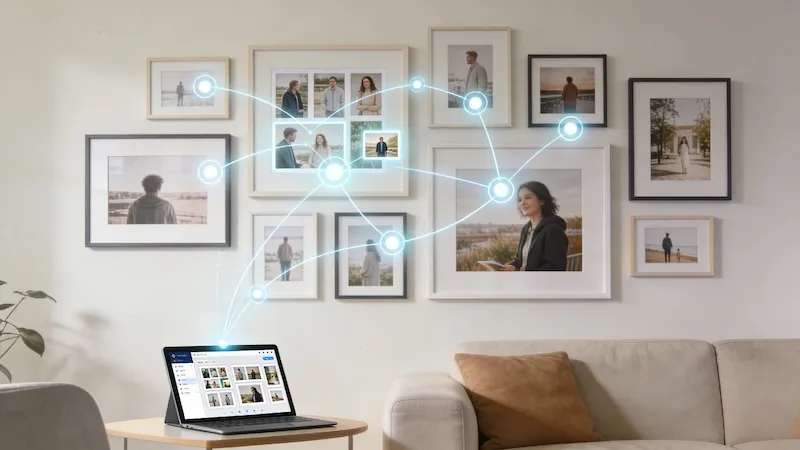
Choosing which photo goes in which frame is often the hardest part of planning a gallery wall. GalleryPlanner’s Smart Fill feature uses local AI to automate this process, selecting the perfect images from your library based on composition, color, and quality.
What is Smart Fill?
Smart Fill is available on all plans and analyzes your uploaded photo library to match images to the frames on your wall. Instead of manually dragging photos into every frame, Smart Fill can populate your entire layout in seconds, ensuring a cohesive and professional look.
💡 Tip: Smart Fill is actively improving. We continuously update model quality and selection logic, so results may evolve over time.
The best part? The analysis happens entirely in your browser. Your photos are never uploaded to our servers, keeping your personal memories 100% private.
How Smart Fill Thinks
The AI doesn’t just pick photos at random. It evaluates every possible photo-to-frame combination—assigning a compatibility score based on four key pillars:
1. Composition & Orientation
The AI identifies the subject of your photo and its orientation (Portrait vs. Landscape). It ensures that a wide landscape shot isn’t squeezed into a tall, skinny frame, and vice-versa.
2. AI Face Detection
Using a local, lightweight neural network, Smart Fill identifies faces within your images. It prioritizes these “portrait” shots for prominent frames and adjusts the crop to ensure no one is accidentally cut off.
3. Color Harmony
Smart Fill looks at the dominant colors across your library. It attempts to distribute colors evenly across your wall, avoiding “clusters” of similar tones and creating a balanced visual rhythm.
4. Print Quality (Resolution Check)
This is the most practical check. The AI calculates the physical size each photo would be printed at based on your frame dimensions. It will skip low-resolution images that would appear blurry or pixelated when printed.
5. Whole-Wall Balance (Pro)
Pillars 1–4 evaluate each frame in isolation. Whole-Wall Balance adds a composition layer that scores the entire wall as a single piece of art:
- Color balance across the wall — avoids clumping all your warm-toned sunset shots on one side.
- Composition diversity — mixes portraits, landscapes, and detail shots so you don’t end up with three near-identical close-ups in a row.
- Visual weight distribution — keeps the “heavy” images from anchoring one corner and throwing the layout off.
Whole-Wall Balance kicks in when you generate Full-Wall Options. Single-frame suggestions still use the frame-by-frame scoring. This pillar is included with GalleryPlanner Pro.
See the Math Behind Each Match
Wondering why Smart Fill picked a particular photo? Tap any Smart Fill option or suggestion to open the Score Breakdown modal. It surfaces the contribution of each pillar so you can tell whether a match won on face detection, color harmony, resolution, or — on Pro — Whole-Wall Balance.
The breakdown is free for everyone and works for both full-wall options and single-frame suggestions. It’s also a useful feedback loop: if a photo you love is scoring low, the breakdown tells you which pillar is pushing back, and you can respond with a Style Toggle or a better crop.
How to Use Smart Fill
Smart Fill is integrated directly into your workflow. Whether you want to fill an entire wall or find the perfect shot for a single frame, the AI is always ready to help.
1. Full-Wall Options
If you’ve just generated a new layout and want to see instant design options:
- Open the Smart Fill section in the sidebar.
- Ensure your library is analyzed by clicking “Analyze Library” if prompted.
- Optionally toggle Wall photos only — Smart Fill will reshuffle the photos already placed on your wall instead of pulling new candidates from your full library. Useful when you like your photo selection and just want a different arrangement.
- Click the “Generate Fill Options” button.
- The AI will instantly calculate millions of combinations and present you with several distinct, high-scoring layout options for your entire wall.
- Review the options, noting their total score and “Diversity” score, and click one to instantly apply it.
2. Instant Selection Suggestions
If you have a specific frame you want to fill manually but need inspiration:
- Click any frame on your wall.
- Look at the Smart Fill section in the sidebar.
- The AI automatically generates a list of “Suggestions for selected frame”, sorted by their compatibility score.
- Keep an eye on the sidebar indicators:
- Match Score (0-100): Shows how well the photo fits.
- Green (> 80): Excellent match.
- Orange (50-80): Good match, might need minor cropping.
- Red (< 50): Poor match (wrong shape or low quality).
- Duplicate Warning (Red !): Shows that this photo is already placed somewhere else on your wall.
- Current Selection (Green ✓): Marks the photo currently inside the selected frame.
- Match Score (0-100): Shows how well the photo fits.
Note on Print Quality: If you see a Red or Yellow Triangle on your canvas frames, that is a resolution warning.
- ⚠️ Yellow: Quality is okay (< 300 PPI) but could be sharper.
- 🔺 Red: Quality is low (< 150 PPI) and may look pixelated.
3. The Right-Click Shortcut
For Power Users who want to stay focused on the canvas:
- Right-click any frame on your wall.
- Select “Auto-Fill” from the context menu. On mobile, tap a frame to select it first, then long-press the selected frame to open the menu.
- The AI will instantly search your library and place the single best match for that specific frame size and orientation.
Getting the Best Results
To help the AI help you, follow these simple tips:
Over-Upload Your Library
The AI needs choices. If you have 10 frames on the wall, don’t just upload 10 photos. Upload 30 or 40. This gives the “Color Harmony” and “Resolution” checks enough data to find truly great matches.
Use the Style Toggles
In the Smart Fill settings, you can guide the AI’s aesthetic choices:
- Target Faces: Ensures your favorite people are prioritized and perfectly centered in their frames.
- Prefer B&W: Prioritizes photos that are already black-and-white (or heavily desaturated) when filling the wall. This is different from the Pro B&W Photo Conversion toggle, which renders any color photo as monochrome non-destructively.
- Prefer Vibrant: Perfect for colorful vacation photos or high-energy family sessions.
Keep Your Library Fresh
Smart Fill automatically re-analyzes your library when photos or frame sizes change. If the Smart Fill tab shows a “Re-analyze needed” indicator, it means the current scoring is out of sync with your wall — a single tap refreshes it. An “Off” state (with no recent analysis) is different from a “No signal” state (analyzed but no matching photos); the tab tells you which one you’re in so you know whether to re-analyze or add more photos.
Manually Fine-Tune
Smart Fill is a powerful assistant, but you’re the lead designer. After the AI fills your wall, you can still:
- Pan and Zoom: Adjust the crop the AI selected. Hit Reset Crop to recenter at 100% in the mat opening.
- Adjust levels: Use the Brightness, Contrast, and Midtone sliders in the Photo panel to balance how individual photos read on the wall. Tap Auto Level (Pro) for one-click tonal optimization per photo.
- Swap: Drag a different photo over a frame to replace it.
- Switch Options: Click another generated option in the sidebar to completely swap the arrangement.
Frequently Asked Questions
Is my data private? Yes. Unlike other AI tools, GalleryPlanner runs the Smart Fill engine locally on your device. Your photos stay in your browser’s memory and are never sent to a cloud server for processing.
Why are some photos being skipped? Usually, this is due to the Resolution Check. If a photo’s pixel count is too low for the selected frame size (falling below 150 DPI), the AI will skip it to prevent you from ordering a low-quality print.
Can I undo a Smart Fill? Yes! Just use the standard Undo (Ctrl/Cmd + Z) or click the “Clear All Photos” button in the project menu to start fresh.
What’s the difference between “Wall photos only” and a regular fill? A regular Smart Fill draws from every photo in your library — placed or not. Wall photos only restricts the pool to the photos currently in frames on your wall, so it just rearranges what you already have instead of pulling in new candidates. It’s disabled when no photos are placed yet.
Related Guides
- Understanding Auto-Layout — Learn how the layout engine arranges frames.
- Print Resolution Guide — A deep dive into DPI and image quality.
- GalleryPlanner Pro Features — Explore the full suite of Pro tools.
Ready to try Smart Fill? Launch the App →
Ready to Let Smart Fill Help?
Open GalleryPlanner with Smart Fill ready so you can test photo picks directly against your frame layout.
Launch GalleryPlanner