Whole-Wall Balance: Scoring the Gallery as One Composition
Learn how GalleryPlanner's Pro Whole-Wall Balance scoring layer evaluates brightness, warmth, people, and warm-cool balance across the full wall instead of frame-by-frame.
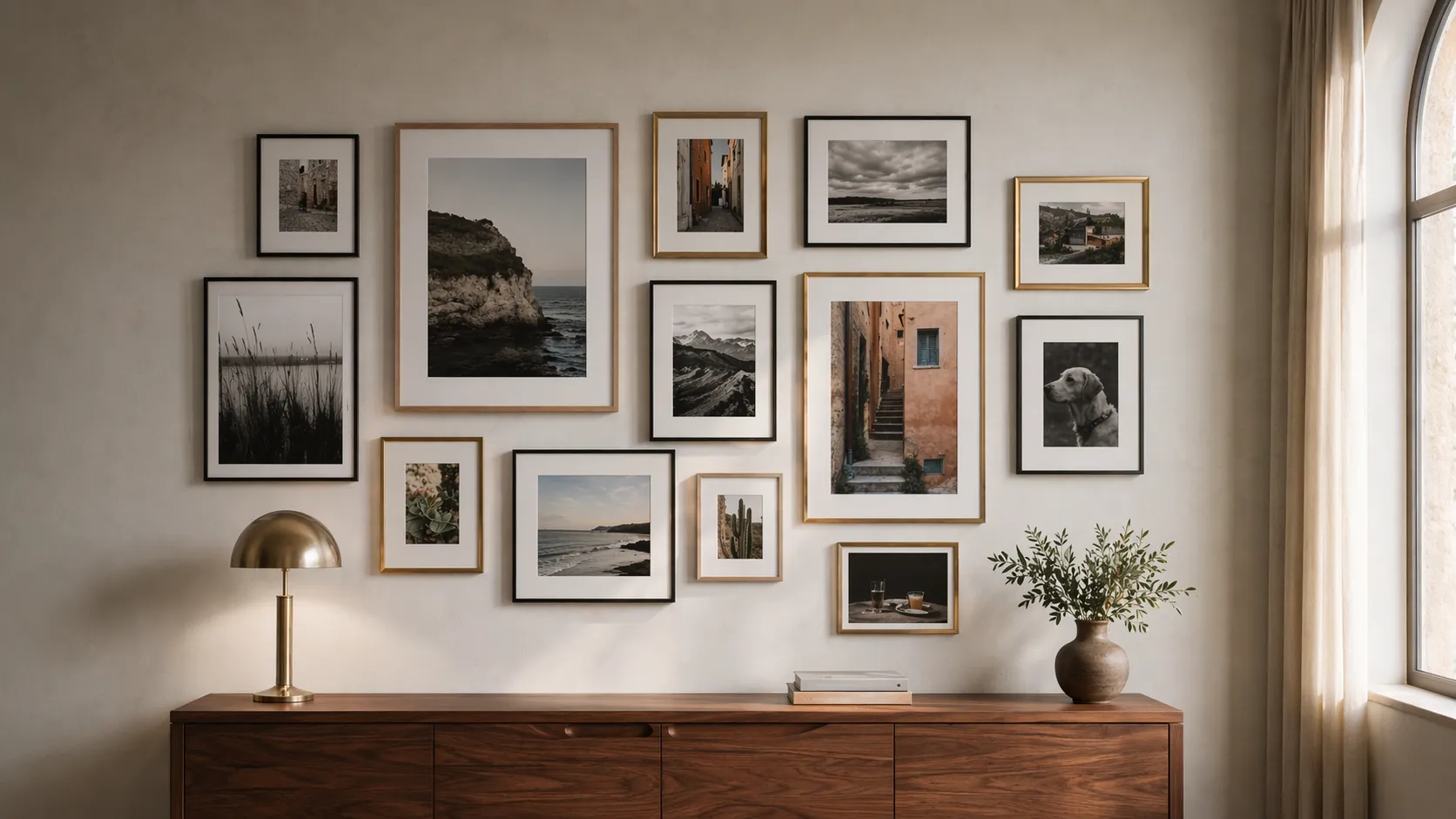
Whole-Wall Balance is the Smart Fill step that checks whether the entire gallery wall works as a composition, not just whether each frame has a good individual photo. That second-pass check is what turns a set of strong images into a wall that feels intentional.
That’s what Whole-Wall Balance addresses. It’s a Pro scoring layer added to Smart Fill that evaluates the entire wall as a single piece of art — not just each frame in isolation. This article walks through what it balances, how to turn it on, and how to read the output.
The Limit of Frame-by-Frame Scoring
Smart Fill scores each photo-to-frame match across five parts:
- Aspect Ratio (25 points): does the photo’s shape match the frame’s opening?
- Resolution (25 points): does the photo have enough pixels to look sharp at the printed size?
- Composition (20 points): does the photo’s orientation (portrait or landscape) match the frame’s?
- Color Harmony (15 points): how well does the photo fit your color preferences, such as Prefer B&W or Prefer Vibrant?
- Face Handling (15 points): when Target Faces is on, do the faces suit the frame’s shape?
Each score is strong in isolation. But “best photo for this frame” can still produce a wall that feels off:
- A cluster of warm sunset shots ends up stacked together on the left side because each one happened to score well on its own
- The darkest images cluster in one corner because the match score doesn’t know about spatial position
- Every portrait with a face ends up on one side of the wall
Good photos, good matches, bad composition. Frame-by-frame scoring can’t see it because it’s not looking at the wall.
What Whole-Wall Balance Adds
Whole-Wall Balance is the layer that evaluates the whole arrangement. It considers where each photo lands on the wall, not just how well it fits its frame.
1. Every photo gets a visual weight
Each placed photo gets a visual weight built from four things: the size of its frame, how bright it is, how strongly warm or cool its colors are, and, when Target Faces is on, how much of it is taken up by faces. A big, bright, people-filled photo pulls the eye more than a small, quiet one.
2. The weight should sit near the middle
Whole-Wall Balance finds the wall’s center of visual weight and rewards arrangements where it sits close to the middle of the wall. The goal is a layout that feels balanced, not top-heavy, bottom-heavy, or lopsided.
3. The weight should be spread out
It also checks how that weight is spread across the four quarters of the wall and across its rows and columns, so the heavy photos don’t all end up in one corner or one band.
4. Where warm and cool tones land
Every photo has a warm or cool lean. Whole-Wall Balance also factors in where those warm and cool photos sit on the wall, which helps keep a run of “warm sunsets” from all clumping in one corner.
When the balance pass runs, it swaps photos between frames to improve these scores, while keeping the photo-to-frame match quality close to the best option.
When Whole-Wall Balance Runs
Whole-Wall Balance applies specifically to Full-Wall Options. That’s the Smart Fill section in the sidebar where the app generates several complete arrangements of your wall at once.
- Full-Wall Options (free) — scored on how well each photo matches its frame
- Full-Wall Options (Pro) — the same match scoring, plus Whole-Wall Balance when you turn it on
Whole-Wall Balance is a Pro option you switch on yourself. In the Smart Fill options, tick Whole-wall balance before you generate. It’s off by default.
Single-frame suggestions (the “what goes best in this frame I just clicked?” flow) continue to use frame-by-frame scoring for both tiers. That’s the right scope for that question — the whole-wall context doesn’t apply when you’re deliberately picking for one slot.
In practice, most gallery wall designers iterate:
- Tick Whole-wall balance (Pro), then click Generate Options to see several whole-wall arrangements
- Apply the Full-Wall Option that reads best (Whole-Wall Balance biases these toward evenly spread walls)
- Manually tweak individual frames using single-frame suggestions to fine-tune
Whole-Wall Balance shows up in step 1. Single-frame Smart Fill helps you polish in step 3.
Reading the Score Breakdown
Tap a Full-Wall Option or a single-frame suggestion to see its score details. Both are free for everyone, so you don’t need Pro to see why Smart Fill picked what it picked.
For a Full-Wall Option, the details show:
- Match Quality: the average score of the photo-to-frame matches
- Coverage, and how many frames were left unfilled, if any
- Diversity: how different this option’s photo picks are from the other options shown
- Whole-Wall Balance (Pro, when it was on for the run): an overall balance score, plus how much of the wall’s visual weight comes from Brightness, Warmth, and Faces, and a Hue Polarity score based on where warm and cool tones sit. If balance was off for that run, the details say so, and you can turn it on and generate again.
For a single-frame suggestion, the details show the five match scores: Aspect Ratio, Resolution, Composition, Color Harmony, and Face Handling.
The breakdown is designed as a feedback loop, not just a receipt. If a layout you love scores low, the details point to where. Possible responses:
- Match Quality low → open a single-frame suggestion to see which score is pulling it down.
- Overall balance low → the heavy photos are bunched up somewhere. Swap a bright or people-filled photo toward the emptier side of the wall, or generate again.
- Faces missing or near zero → faces only count when Target Faces is on. Turn it on if people are the point of the wall.
- Resolution low → the canvas shows a warning triangle on frames where the photo falls under 150 PPI at the printed size.
When Whole-Wall Balance Matters Most
Not every gallery wall needs composition scoring. Some arrangements are intentional repetition — eight black-and-white family portraits in matching frames should look identical in character. Some arrangements are so small that there’s no “distribution” question to ask.
Whole-Wall Balance is most useful when:
- The wall has 6+ frames. Below that, composition mostly sorts itself out.
- The photos are varied — different trips, different seasons, some bright, some moody. The more varied the library, the more value in a layer that thinks about distribution.
- You’ve generated several options and they all look similar. The balance scores in the details will often surface the one with genuinely better balance even when they look superficially close.
- You’re designing for a focal wall. Above a sofa, a headboard, a console — anywhere the wall is the first thing the eye lands on, composition balance matters more than on a hallway wall.
What It Doesn’t Do
A few things Whole-Wall Balance deliberately doesn’t try to solve:
- It doesn’t override your manual choices. If you drag a specific photo into a specific frame, it won’t silently swap your photo out.
- It doesn’t enforce a “rule.” The scoring is comparative — higher scores mean a better-distributed wall relative to other options, not “this is the one correct layout.”
- It doesn’t replace your taste. The score is a second opinion, not a verdict. Apply the option you like best; use the breakdown to understand why.
Frequently Asked Questions
Is my data used to train the scoring model? No. Like the rest of Smart Fill, Whole-Wall Balance runs on your device. Your photos are never uploaded to our servers.
Does Whole-Wall Balance work with non-photo art? It works with any image, including art prints and mixed media. The brightness, warmth, and color calculations are image-based and don’t require photo-specific metadata.
Why do single-frame suggestions not use Whole-Wall Balance? Single-frame suggestions answer a narrower question: “what’s best for this frame given the other frames are already placed?” The whole-wall composition is already fixed in that context, so the frame-by-frame scoring is the right tool.
Can I toggle Whole-Wall Balance off? Yes. It’s the Whole-wall balance checkbox in the Smart Fill options (Pro), and it’s off by default. Tick or untick it before you click Generate Options. Your Style Toggles (Target Faces, Prefer B&W, Prefer Vibrant) work either way.
Ready to Keep Planning?
Open GalleryPlanner and jump back into your current wall plan without forcing you into a specific tool first.
Launch GalleryPlanner