The Evolving Gallery: Designing Walls That Grow With Your Family
Create a family gallery wall that can grow over time, with room for new portraits, kid art, milestones, and seasonal swaps without a full redesign every time things change.
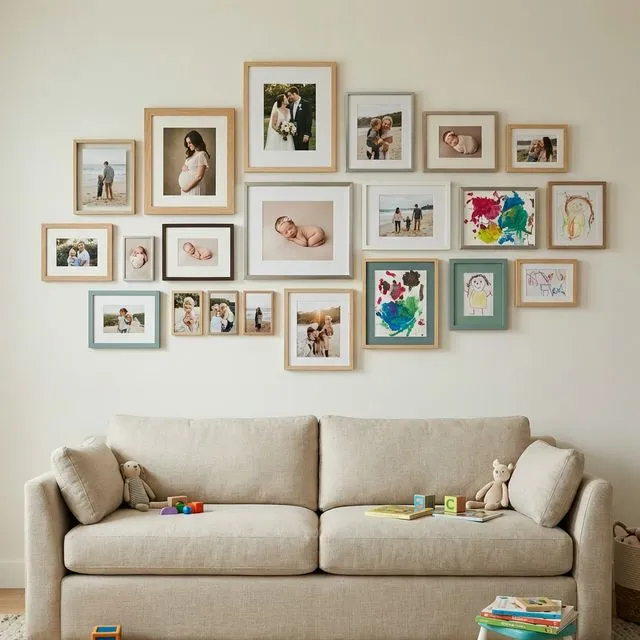
A family gallery wall works best when you design it as a modular system with clear anchor pieces, deliberate gaps, and a few repeatable frame sizes. That gives you room to add new photos later without rebuilding the whole wall.
The Modular Mindset
The secret to an evolving gallery wall is modular design. Instead of a tightly packed, fixed-size grid, you want a layout that can expand organically in different directions.
1. Leave “Growth Zones”
When planning your initial wall in GalleryPlanner, don’t fill the entire space.
- The Anchor Method: Place your largest, most permanent pieces in the center.
- The Outward Flow: Allow smaller frames to cluster around the center.
- Empty Canvas: Leave a 12-to-18-inch “buffer” on one or both sides of the collection for future additions.
2. Mix Textures and Media
Families produce more than just professional portraits. An evolving wall should have room for:
- Kids’ Masterpieces: Use “easy-change” frames (the ones that open from the front) to rotate through school art projects.
- Candid Snapshots: Smaller 4×6 or 5×7 frames are perfect for those phone photos that capture a moment.
- Mementos: Shadow boxes for a first pair of shoes or a theater program.
Strategy: The “Cluster & Gap” Technique
One of the best ways to allow for growth is to avoid perfect symmetry.
- The Cluster: Group 3-4 frames tightly together as a “unit.”
- The Gap: Leave a slightly larger-than-normal gap (maybe 5-6 inches) between these clusters.
- The Expansion: When a new memory comes along, you can insert a new frame into that gap or add a new cluster to the edge, making the entire wall feel like a puzzle that’s slowly being completed.
Planning for the Future in GalleryPlanner
GalleryPlanner is your secret weapon for “simulating” tomorrow.
- Phase 1 (Today): Layout the 5-7 frames you currently have.
- Phase 2 (The Vision): Add “Ghost Frames” (frames with no images or simple placeholders) to the layout. These represent where you intend to add frames in the next 1-2 years.
- Lock & Save: Save your project. When you get a new photo, open the project, replace a “Ghost Frame” with a real one, and you’ll know exactly where to hammer the nail.
⚠️ Important: Plan for Scale. If you’re planning a wall for a newborn, remember they won’t be a baby forever! Mix in larger horizontal frames that will look great for group family shots 5 years down the line.
Technical Tip: The Hanging Hardware Pivot
If you know you’ll be Moving and Adding frames often:
- Picture Ledges: These are the ultimate evolution-friendly tool. You can swap, overlap, and move frames of any size without a single new hole in the wall.
- Gallery Rails: For a more classic “museum” look, a rail system allows you to hang frames from wires, making height and position adjustments effortless.
Summary: A Wall as Dynamic as Your Life
An evolving gallery wall is a story in progress. By planning with growth in mind—and using GalleryPlanner to visualize the end-state—you can create a display that feels complete today, but has room for “just one more” tomorrow.
Start your family gallery plan →
Ready to Generate a Layout?
Open GalleryPlanner with Auto-Layout ready and turn these ideas into a wall plan with real dimensions.
Launch GalleryPlanner