Gallery Wall Calculator: How GalleryPlanner Does the Math for You
A gallery wall calculator that actually does the math — spacing, eye-level, composition, Wall Objects, and a printable hanging guide, all inside GalleryPlanner's visual planner.
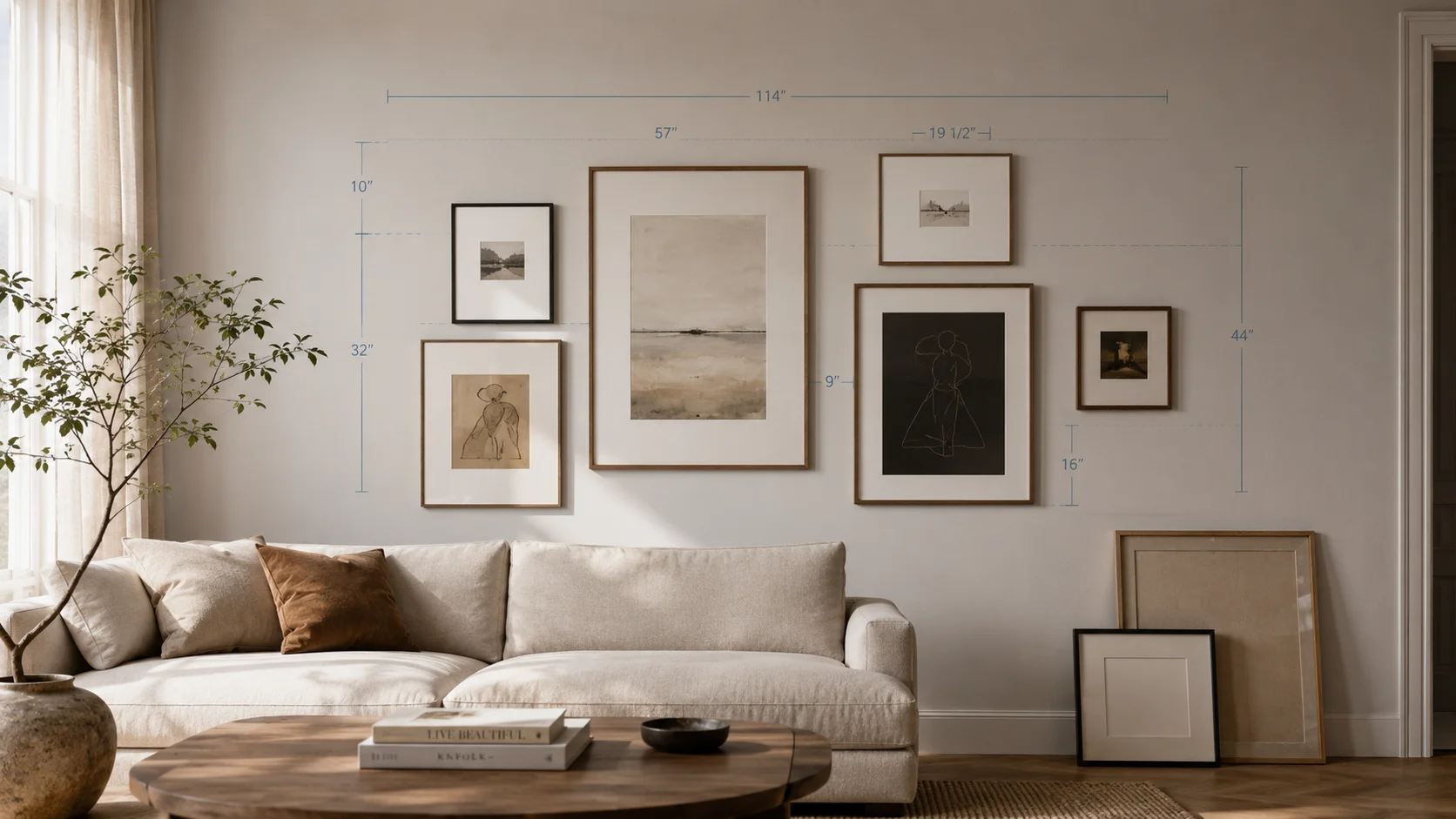
Quick answer: To check whether your frames fit a wall, add up the frame widths, add one gap (2 to 3 inches) for each space between frames, and compare the total to the wall space you have. For height, put the center of the whole group at about 57 to 60 inches from the floor. GalleryPlanner does both for you and prints the exact position of every frame.
Most “gallery wall calculator” tools online are blog posts with a label. They tell you to aim for 2–3 inches between frames, hang centers at 57 inches, and good luck.
GalleryPlanner is different. It’s not a separate calculator — it’s a visual planner where every meaningful measurement is a number you can type, a slider you can tune, or a layout the app generates for you. This guide walks through the four pieces of math behind every gallery wall, and how GalleryPlanner handles each one.
The Four Calculations Every Gallery Wall Needs
| Calculation | What it answers | Where it lives in GalleryPlanner |
|---|---|---|
| Spacing | How far apart should frames sit? | Auto-Layout’s Spacing slider; Align / Distribute toolbar for hand-placed frames |
| Eye level | How high should the cluster sit? | Eye level guide on the canvas; Eye Level button (Pro) for one-click centering |
| Composition | Which frames go where? | Auto-Layout — six algorithms, ten options per run, scopable with Layout Zones (Pro) |
| Installation | Where do the frames actually go on the wall? | Hanging Guide PDF (Pro) |
1. Spacing: 2 to 3 inches, but how do you keep it consistent?
The standard rule is 2–3 inches between frames in a tight cluster, 4–6 inches if you want the wall to breathe. The rule is easy. Holding it exactly across eight frames at different sizes — that’s where most DIY walls fall apart.
GalleryPlanner handles spacing two ways, depending on how you’re working.
For automatic layouts, set the Spacing slider in the Auto-Layout panel (inches or cm). Every generated layout respects it. There’s also a separate Margin slider for padding from the wall’s edges.
For hand-placed frames, GalleryPlanner uses a fixed snap-to-grid — 1 inch imperial, 2 cm metric, toggleable with the S key. Drag frames in, let them snap. For exact, uniform gaps across multiple frames, select them and use the alignment toolbar: Align Left / Center / Right / Top / Bottom to true up edges, and Distribute Horizontally / Vertically (with three or more frames selected) to space them evenly.
2. Eye Level: 57 inches is a guideline, not a law
The museum standard is to put the center of the artwork at 57 inches from the floor. That’s where the average viewer’s eye sits when standing.
But your wall isn’t a museum. If the wall sits above a sofa, the center should be 6–10 inches above the sofa back, not 57 inches absolute. If the wall is in a stairwell, “center” climbs with the stairs.
GalleryPlanner gives you two ways to work with eye level. Turn on the eye level guide and a horizontal reference line appears on the canvas at the configured height (default 60”, adjustable). Select your cluster and click the Eye Level button (Pro) — it snaps the selection’s vertical center onto that line. For above-furniture walls where the floor isn’t the right anchor, skip the guide entirely and work from the furniture’s top edge.
Gallery Walls Above Furniture →
3. Composition: Auto-Layout solves the puzzle six ways
Once you have frames and a wall, the hard question is which frames go where. Big piece dominant left, two mediums stacked right? Three mediums in a row above two smalls? Salon-style cluster radiating from an anchor?
This is the calculation nobody does well by hand. It’s combinatorial — six frames at three sizes have hundreds of arrangements that satisfy a spacing rule. Most people just shuffle paper templates on the wall until something looks right.
Auto-Layout is the GalleryPlanner feature that handles it. Pick one of six algorithms based on the look you want:
- Masonry — packed but organic, varied row heights
- Center Out — radiates from an anchor frame
- Skyline — tidy horizontal rows (you set how many)
- Grid — deterministic clean grid for matched frames
- Organic — looser, more scattered
- Tidy Up — cleans an existing arrangement without scrambling it
Set Spacing and Margin, click Generate Layouts, and the panel returns up to 10 unique options labeled Option 1 through Option 10. Click any thumbnail to apply it. Regenerate as many times as you want.
If you’ve already decided where a hero piece goes, lock it before generating — Auto-Layout treats locked frames as fixed obstacles and arranges the rest around them. If the obstacle is a TV, sofa, window, or other real fixture, add a Wall Object (Pro) instead of faking it with a locked frame. Pro accounts can pin favorite layouts that persist across sessions.
When the gallery doesn’t fill the whole wall, use Layout Zones (Pro). Click Draw Layout Zone, drag a rectangle on the canvas to define the area — say, above the sofa, or beside a doorway — and optionally label it (“Above sofa”, “Reading nook”). Auto-Layout will only place frames inside the zone and treat everything outside it as off-limits. You can draw multiple zones, even overlapping ones, for galleries that need to wrap around windows, vents, or other wall features. Use Wall Objects when you want the obstacle itself to stay visible on the canvas.
4. Installation: The Hanging Guide replaces the tape-measure scramble
Once the layout is set, you need to translate the on-screen arrangement into actual marks on the wall. GalleryPlanner’s Hanging Guide PDF (Pro) does exactly that.
It exports a two-page PDF:
- Page 1 is a measurement table. Each frame is listed with its outer dimensions, opening size, and two distances — From Left and From Bottom — that locate the bottom-left corner of the frame relative to the bottom-left corner of the wall. A Hang Height column gives the vertical center of each frame above the floor.
- Page 2 is a gridded scale drawing of the wall with numbered frames matching the table.
A single reference point — the bottom-left corner of the wall — is all you need at the wall itself.
The Hanging Guide tells you where each frame goes. It does not tell you where to drive the nail. Nail position depends on the hardware on the back of each frame — D-ring, sawtooth, or wire — which varies frame by frame. Measure the hardware drop on the actual frame, then mark your nail that distance above where the frame’s top edge should land.
A Worked Example: Four Frames Above a Sofa
The setup: A 144-inch living room wall with an 84-inch sofa centered against it (30 inches tall). You want a gallery wall above the sofa — a 24×30 inch piece (the largest), two 11×14 inch pieces, and an 8×10 inch piece.
The by-hand math:
- Target cluster width: roughly 60–65 inches (about three-quarters of the sofa width — a common ratio).
- Cluster vertical span: about 30 inches.
- Cluster center: 6–10 inches above the sofa back.
- Spacing: 2.5 inches between frames.
- Combined frame widths: 24 + 11 + 11 + 8 = 54 inches, plus three 2.5-inch gaps = 61.5 inches. Centered on the 84-inch sofa, that leaves 11.25 inches of clear space on each side.
That’s three minutes of arithmetic, assuming you don’t miscount or forget that the gap count is one less than the frame count.
The GalleryPlanner workflow:
- Set your wall width to 144 inches in Wall Properties.
- Add the four frames at their actual sizes with Add Frames.
- (Pro) If you want the sofa itself to show up as a reference, add a Sofa Wall Object first. If you only want to reserve the area, click Draw Layout Zone and drag a rectangle over the area above the sofa — the region you want the gallery to fill.
- Open the Auto-Layout panel. Set Spacing to 2.5”, Margin to whatever breathing room you want.
- Pick an algorithm — Center Out works well when you have a clear hero piece; Masonry handles varied sizes.
- Click Generate Layouts and pick the option you like best. Regenerate if none feel right.
- Upgrade to Pro and export the Hanging Guide PDF. Walk it to the wall.
Same answer. No arithmetic.
When You Still Reach for a Tape Measure
Two things you’ll always measure yourself:
- The wall. Software can’t measure your wall for you. Take a tape and get the wall’s width, height, and the position of anything you’re hanging above (sofa back, console top, headboard). Plug those numbers in.
- The hardware on each frame. The Hanging Guide gives you the frame’s position. To translate that into a nail position, measure the offset from the top of the frame to where the hanger sits, then drive your nail that distance above where the frame’s top edge should land.
Everything in between — spacing, eye-level placement, composition, the layout-to-wall translation — that’s what GalleryPlanner is for.
Frequently Asked Questions
How do I calculate whether my frames fit the wall? Add the frame widths, then add one gap for each space between frames. Three 16-inch frames with 3-inch gaps take 48 + 6 = 54 inches. On a 72-inch wall section, that leaves 9 inches of margin on each side when centered.
How much of the wall should a gallery wall take up? Roughly two thirds of the width of the furniture beneath it, or 60 to 75 percent of an open wall’s width. Filling the wall edge to edge tends to look cramped.
How high should the center of a gallery wall be? About 57 to 60 inches from the floor for an open wall. Above furniture, start the bottom row 6 to 10 inches above it and let the center land where it lands.
How do I find the nail position for each frame? Take the height of the frame’s top edge from your plan, then subtract the distance from the frame top to its hanger. See How to Hang a Gallery Wall for each hardware type.
Is the Hanging Guide free? Free users can preview it. Downloading the full PDF is a Pro feature. Planning, Auto-Layout, and the on-screen measurements are free.
Stop calculating. Start planning.
The fastest gallery wall isn’t the one with the best spreadsheet. It’s the one where you skip the spreadsheet entirely.
Ready to Generate a Layout?
Open GalleryPlanner with Auto-Layout ready and turn these ideas into a wall plan with real dimensions.
Launch GalleryPlanner