Account & Pro Access
A free GalleryPlanner account is what carries Pro bought on the web. Create it inside GalleryPlanner, with the same email you used at checkout.
Creating an account takes about a minute:
- 1. Click Sign UpOpen GalleryPlanner. On desktop, click Sign Up in the top-right corner, next to Upgrade to Pro. On mobile, open Menu and tap Sign Up. If you've had Pro on this browser before, you'll see Sign In instead; use it to get back into your account.

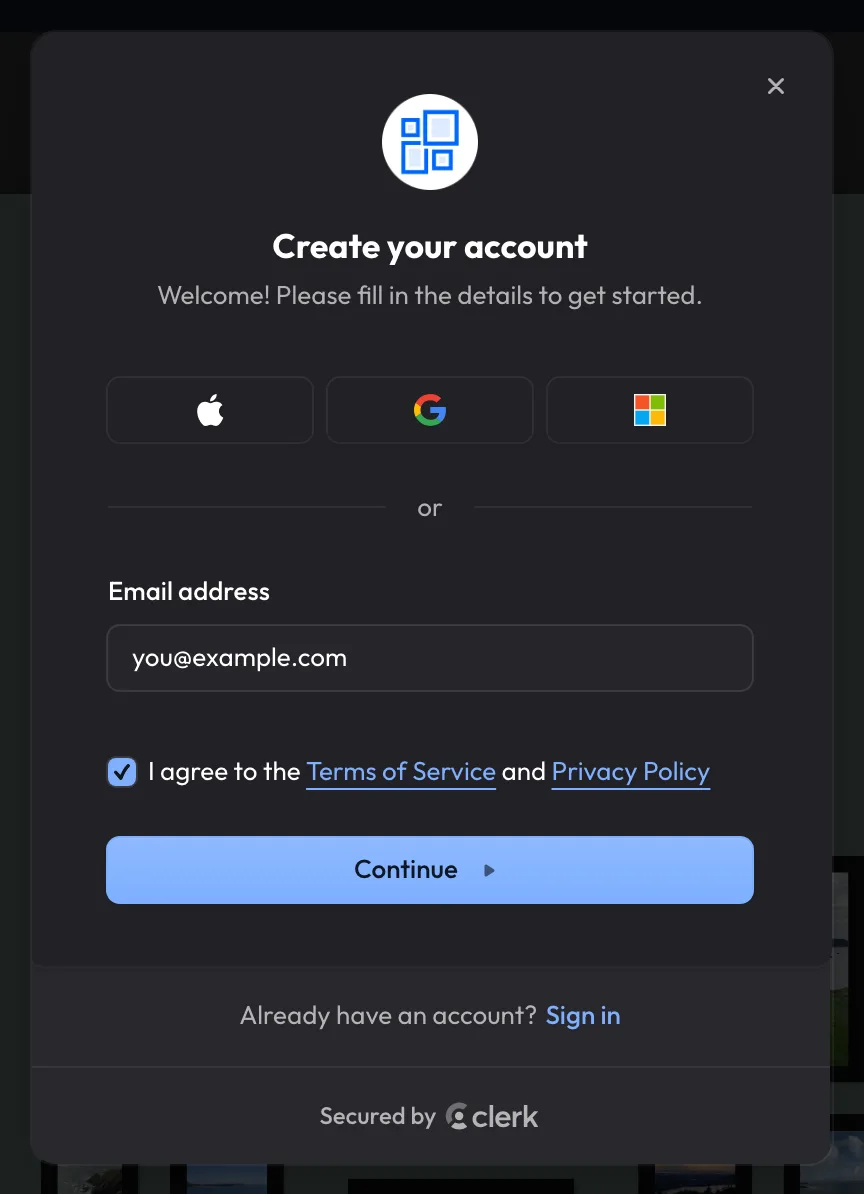
- 2. Enter Your Email, or Use Apple, Google, or MicrosoftThe quickest way: click the Apple, Google, or Microsoft button at the top and sign in with that account. There's no code to enter, and you're done. Otherwise, type your email address, check the box to agree to the Terms of Service and Privacy Policy, and click Continue. Either way, if you already bought Pro, use the same email you entered at checkout.
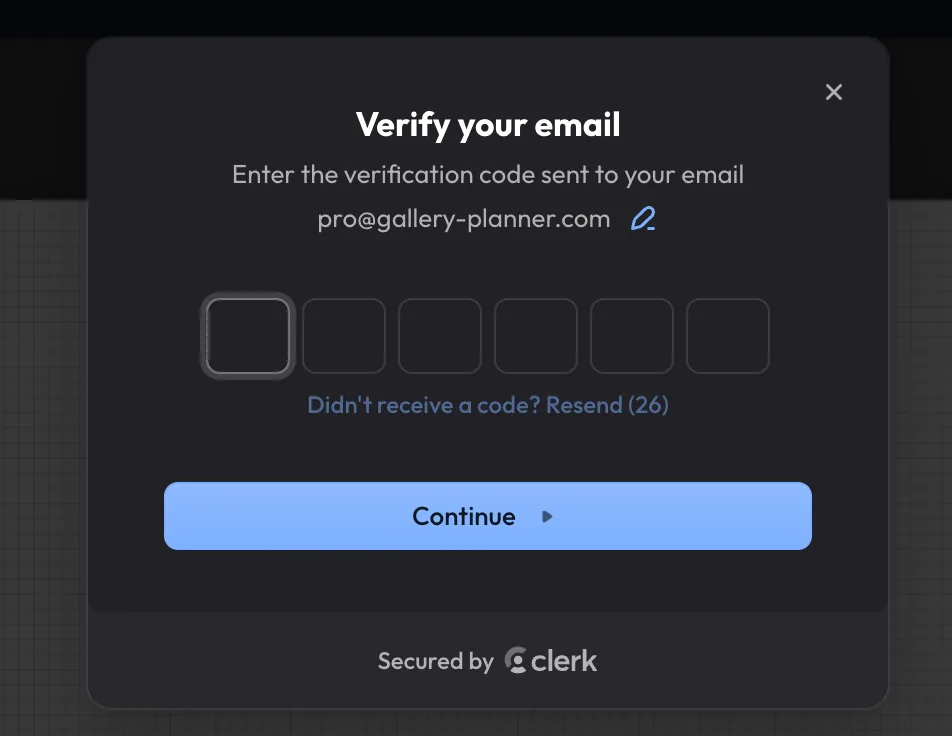
- 3. Enter the CodeIf you signed up with your email, we send you a six-digit code. Enter it and click Continue, and you're signed in. No code after a minute or two? Check your spam folder, or click Resend.
Bought Pro on the web? Here is how it reaches your account:
- Use the Same Email You Paid WithPro bought on the web is saved under the email address you entered at checkout. Create your GalleryPlanner account (or sign in) with that same email, and Pro turns on automatically. Signing in with Apple, Google, or Microsoft works too, as long as it uses that same email. With Sign in with Apple, choose Share My Email: if you hide your email, Apple gives us a private relay address that won't match the email you paid with.
- Lemon Squeezy Accounts Are SeparateLemon Squeezy processes our web payments and sends your receipt. They may also let you sign in on their site to see your orders. That is a Lemon Squeezy account, not a GalleryPlanner account, and signing in there does not give you Pro. To use Pro, create your account inside GalleryPlanner using the steps above.
- Pro Isn't Showing Up?Check that you're signed in: the top-right corner shows your profile icon instead of Sign Up or Sign In. Then check that your account uses the same email you paid with. Already made an account with a different email? Email us and we'll move Pro over. Still stuck? Email us from the address you used at checkout and we'll sort it out.
Done with GalleryPlanner?
- Delete Your AccountOn a computer, click your profile picture in the top-right corner and choose Delete account. On a phone or tablet, open Menu, tap the Signed in as card, and choose Delete account. Your account settings open on the Security page: scroll to the bottom, click Delete account there, and confirm. This ends Pro on your account, including any Pro Pass saved to it. Your projects and photos stay on your device.